Looking for a video to text converter that takes MP4 or MOV directly? We compare 8 tools on formats, limits, and output, including where each falls short.
Video to Text Converter: 8 Tools That Take Video Files Directly
A video to text converter should take your MP4 or MOV exactly as it is: no error message, no separate audio extraction step first. In practice, plenty of tools wearing that label still reject video files and quietly hand you an extra chore. This roundup looks at eight tools through that lens: which ones accept video directly, what they hand back, and where each one makes sense.
Prefer to skip the comparison and transcribe one now? Our video to text tool takes MP4, MOV and more directly, 10 free minutes on your first file.
One Step or Two: Why It Matters
A video file is essentially an audio track riding inside a bigger container. The transcription engine only ever listens to the audio; the real question is who does the unpacking: you or the tool. Doing it yourself is not difficult, but it costs time, disk space, and a little friction on every single file. Multiply that by a folder of recordings and the one-step tools earn their keep. There is a quality angle too: a careless re-encode to a heavily compressed audio format can shave accuracy off the final transcript.
The Eight Tools
1. FileToText
Ours, so here is the short version plus a way to verify it. FileToText takes MP4, MOV, and other common video formats by drag and drop, with no extraction step, and returns a plain text transcript you can read, copy, or download. The first ten minutes of your first file are transcribed free in seconds, which is the quickest way to test the 95%+ accuracy claim on your own footage. It auto-detects more than 90 languages and takes recordings up to ten hours in one pass. It produces text only; if you want a full editing environment around your video, look at Descript below.
2. Descript
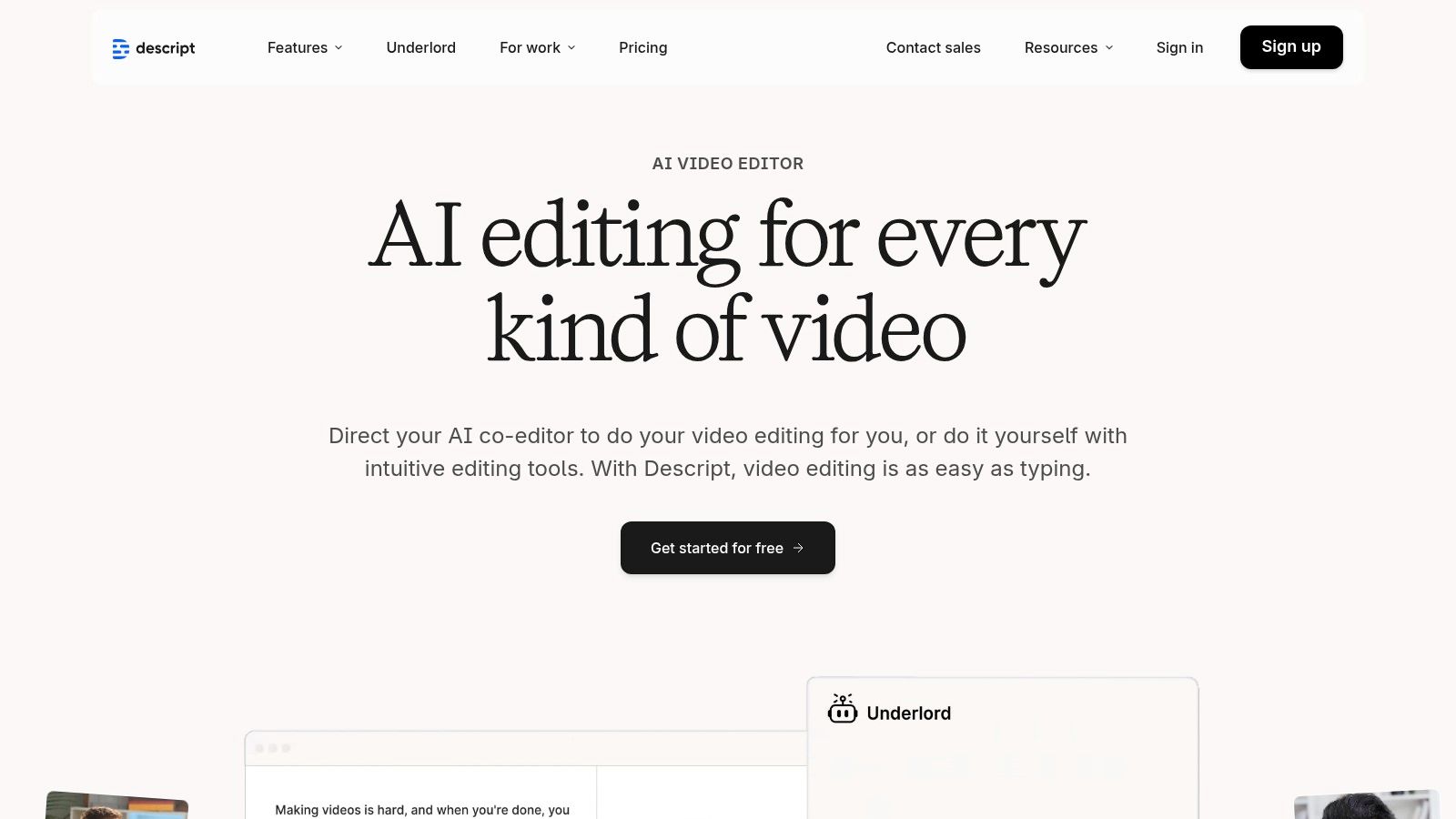
Descript imports video directly and makes the transcript the editing surface: cut a paragraph of text and the corresponding footage is cut with it. That is powerful when transcription is step one of an edit. When all you want is the text, you are carrying the weight (and the subscription) of an entire production suite.
3. Happy Scribe
Happy Scribe accepts video uploads directly and can also pull files straight from cloud storage, which spares you the download-reupload shuffle. It layers an optional human-proofread service on top of its automated pass, and its shared workspaces suit teams that review transcripts together.
4. Sonix
Sonix takes video files without complaint and drops the result into a solid browser-based editor with speaker labels and timings. Billing is per hour of material, which suits irregular workloads; most extras beyond core transcription are chargeable add-ons.
5. Trint
Trint handles video uploads inside a workflow built for news and communications teams: several people can verify and correct the same transcript at once, and the company is explicit that customer material is not used for model training. Pricing targets organisations rather than individuals.
6. Rev
Rev accepts video for both its automated service and its human transcription, the latter with a 99% accuracy guarantee at a flat per-minute rate. When a transcript has legal or medical consequences, that human layer is the point. For routine work it is the expensive option.
7. Otter.ai
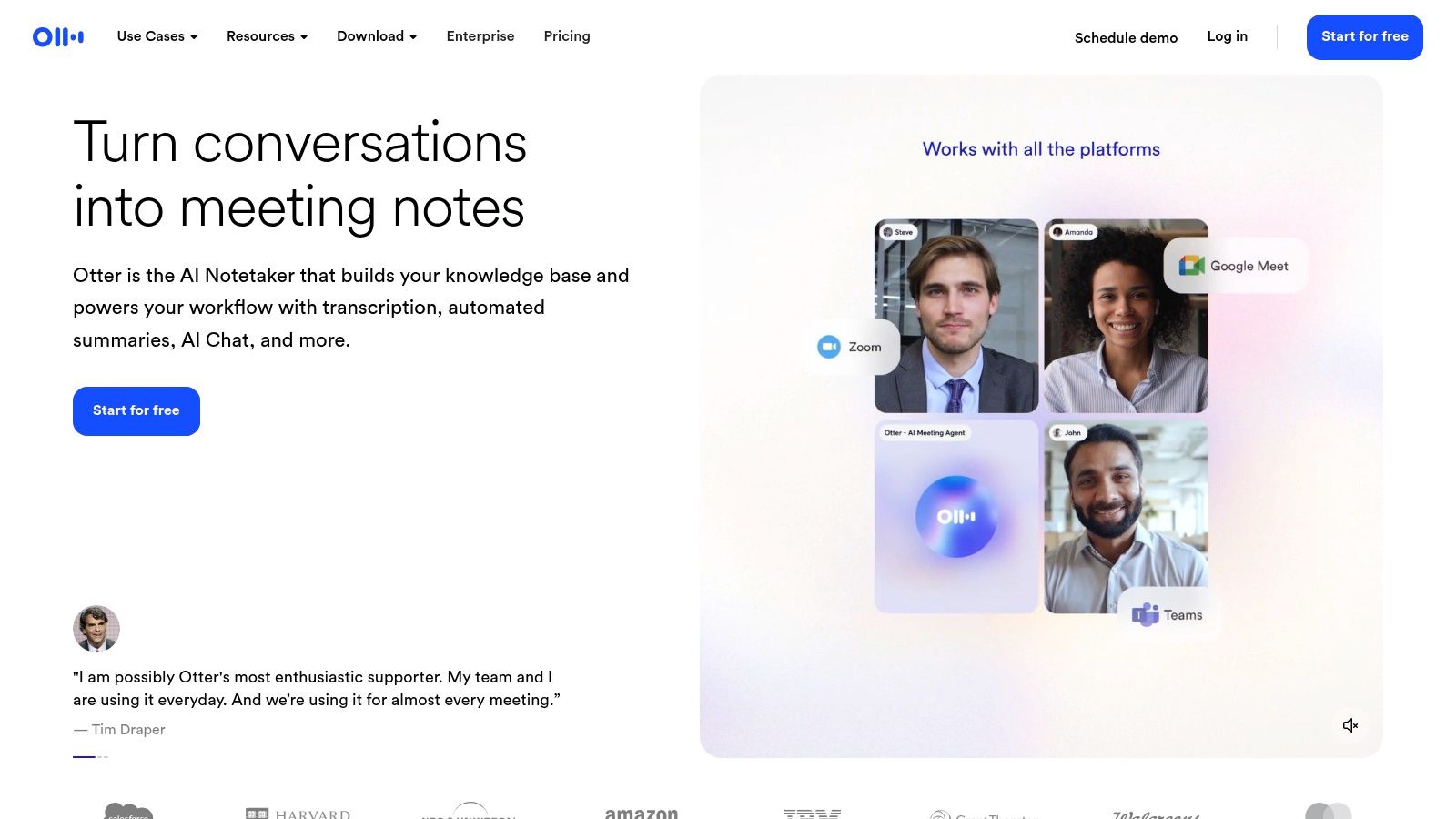
Otter is built around live meetings: it joins calls, takes notes in real time, and summarises afterwards. Video file uploads exist but are metered by plan, and the product's centre of gravity is clearly the meeting itself rather than finished video files. Choose it for calls, not for a drive full of MP4s.
8. OpenAI Whisper
Whisper is technically an audio model, but its command-line tool leans on ffmpeg, which unpacks most video containers automatically, so in practice you can point it at an MP4 and it just works. It is free, private, and self-hosted; the cost is a terminal, a setup session, and your own hardware.
Three Things to Check Before You Upload
Accepting video files is the entry ticket, but the tools above still differ in ways that only show up mid-project. Three checks save the most grief:
- Length and size ceilings. A two-hour webinar or an all-day workshop recording will hit upload caps on some services. If your material runs long, confirm the limit first. FileToText takes up to ten hours in a single file, while several competitors ask you to split anything past a couple of hours.
- Where the footage goes. A video file often shows faces, screens, and names on slides, more sensitive than bare audio. Look for a stated retention period and a delete control; for footage that must stay in-house, the self-hosted route is the only complete answer.
- What you get back, and how easily it leaves. Some tools return a transcript you can copy or download immediately; others keep it inside their editor and meter the exports. If the text is headed for a document, a CMS, or an analysis tool, make sure plain text comes out without a fight.
Stuck with an Audio-Only Tool?
Then extraction it is. Keep two rules in mind: extract once, and extract at quality (WAV or M4A rather than a low-bitrate MP3), so the transcription engine hears everything the camera heard. Most video editors and free desktop tools handle the export in a couple of clicks.
Choosing Quickly
- Plain transcript from a video file, minimum fuss: FileToText or Sonix.
- Transcription as the start of a video edit: Descript.
- Team review and verification: Trint or Happy Scribe.
- Legally sensitive material: Rev's human service.
- Live meetings rather than files: Otter.
- Nothing may leave your machine: Whisper.
For the full journey from raw file to a polished document (preparation, transcription, and editing), see our step-by-step guide to turning a video into clean text.
Common Questions
Which video formats do transcription tools accept?
MP4 and MOV are close to universally supported among tools that take video at all. WebM, MKV, and screen-recorder formats are patchier: one tool imports them happily, the next rejects them. If a file is refused, extracting the audio track is the reliable fallback.
Does extracting audio first reduce transcript accuracy?
Not if you do it carefully. The audio inside the video is untouched by a proper extraction. Accuracy only suffers when the extraction re-encodes to an aggressive, low-bitrate format, so choose WAV or a high-quality M4A when given the option.
How long does a one-hour video take to transcribe?
Automated services typically return a one-hour file in a few minutes. Human transcription runs from several hours to a couple of days depending on turnaround tier. Self-hosted Whisper depends on your hardware: near real time on a good GPU, far slower on a laptop CPU.
Want to skip the extraction step entirely? Drag your video onto FileToText at filetotext.ai (MP4 and MOV welcome) and read the first ten minutes of your first file free before deciding anything.